

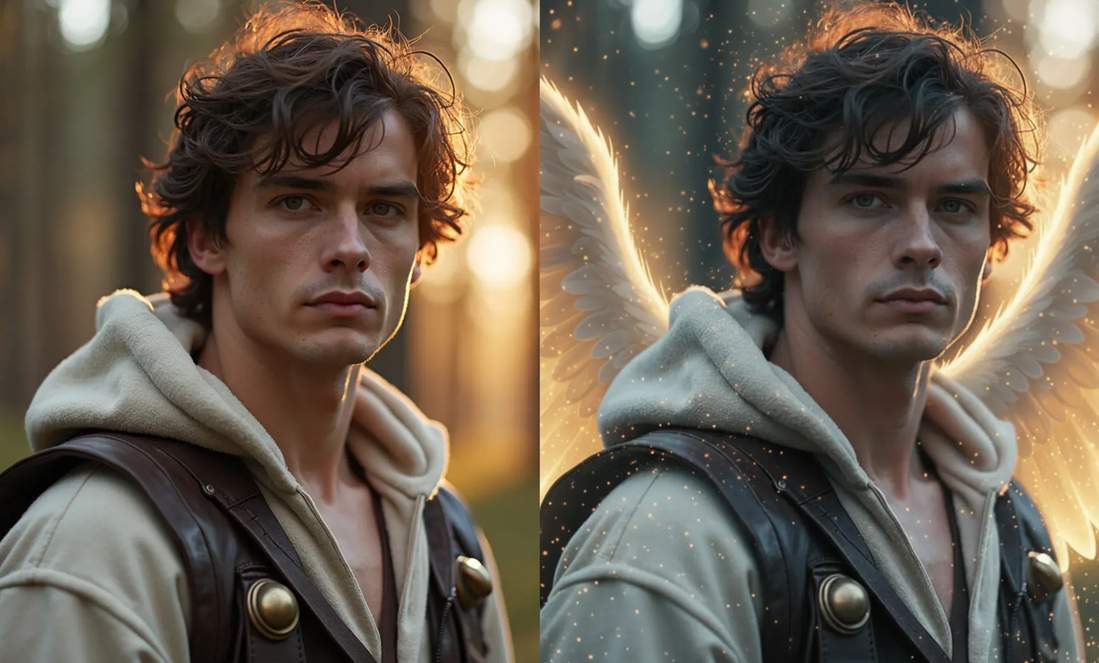
You finally get a picture where everyone is looking at the camera, only to notice the clutter behind them. Or you photograph something you want to sell, and the lighting makes it look flat. The usual response is to take another shot. That isn’t always possible, and it isn’t always necessary.
AI editing is handy in these situations, provided you approach it as a way to solve a specific problem rather than give every picture a complete makeover.
Keep the Parts That Already Work
Before uploading a photo, identify what you actually like about it. Maybe it’s an expression you couldn’t easily capture again, the way a product sits on a table, or the small details in an old family picture.
Those are the things to protect. Pick one change you want to make and describe it as plainly as possible. “Replace the crowded room with a neutral background, but keep the person’s face, hair, and clothing unchanged” gives an editing model a much clearer job than “make this photo professional.”
That distinction matters with personal photographs. An image may look polished at first glance but feel wrong because a familiar face has changed slightly. If the identity or character of the subject is important, compare the result with the original before doing anything else.
Edit Once, Look Closely, Then Decide
Pixlio’s AI image editor starts with an existing image. You upload a reference, explain what you want changed, and select a model. After a result appears, you can send that image back into the editor with a revised instruction.
That makes it possible to handle a photo in stages. Suppose you’re preparing a portrait for an author bio. First, simplify the background. If that works, adjust the lighting in a separate pass instead of asking for a new setting, new clothes, and a new expression all at once.
Zoom in before accepting the result. Glasses, hair, fingers, lettering, and product edges are easy to overlook in a small preview. They can also be the first things other people notice when the picture is published.
There’s little value in generating five versions when the second one does the job. Saving credits is often as simple as choosing a clear reference photo and avoiding unnecessary changes.
Sometimes a Dedicated Tool Makes More Sense
Not every job needs an open-ended prompt. Pixlio is also an AI image creative studio with tools built around particular tasks, which can make a wider creative workflow easier to manage.
An AI Professional Headshot tool, for example, may suit someone updating a work profile. Photo Colorizer is useful for exploring how a black-and-white family photograph might look in color, although the added colors shouldn’t be treated as historical facts. And AI Image Combiner helps when a project calls for elements from separate pictures to share one scene.
These are different jobs, with different standards of success. A profile photo should still resemble the person. A family photo should retain its character. A composite needs believable scale, light, and shadows. Choosing the tool around the task is often easier than trying to make a general-purpose editor handle everything.
Think About Where the Picture Will Go
A photo intended for a small profile circle needs a different crop from one used across a blog header. A product image may need a clean background, while a poster might benefit from extra space around the subject for text.
An online AI photo editor becomes more practical when those next steps are connected. In Pixlio, you can take an edited image into separate tools to remove its background, upscale it, or extend the surrounding scene. You still review the settings and run each task, but you don’t have to rethink the image from the beginning.
Keep the original file, check the final image at its intended size, and stop when it serves its purpose. Good editing often means that nobody notices the editing at all.